
The interact button
One button now talks, banks, loots and crafts, crafting stations show what you can make, three new dragons, and phones run a lot smoother.
The interact button
The round button beside attack used to only mine, chop, fish and forage. It's now the interact button, and it uses whatever is in reach: talk to people, pick up loot, open the bank, use the anvil, go through doors, and all the gathering it did before. The little buttons that floated beside everything are gone (no more menus covering the scenery and hopping about whenever someone walked past).
- It shows what it'll do. The button goes for what your quest points you to first, then whatever is closest, and outlines it in gold so you know what you're about to use.
- One press. Pressing it does what's on offer, like Talk or Open Bank. When something offers more, like the anvil's Use Anvil and Enchant or a shopkeeper's Trade, pressing it lists every option above the button to pick from.
- The bar. Once something has listed its options, the button grows a little tab on its left. Tap the tab and every option lays out in one bar, where a tap does it straight away. The bar stays out until you tap the tab again, even as you walk from one thing to the next.
- Loot is picked up one item at a time, and with nothing in reach the button dims.
- Not a fan of the glow? Turn off Interaction Glow under Gameplay in Settings.
- The Heal button now always sits beside attack, dimmed while you're at full health, instead of popping in and out.
It's more reliable on a shaky connection too. Pressing it right after walking up to something could get ignored when your Wi-Fi hiccuped, because the press reached the world before the steps that took you there. Your steps now always arrive first.
Crafting stations show what you can make
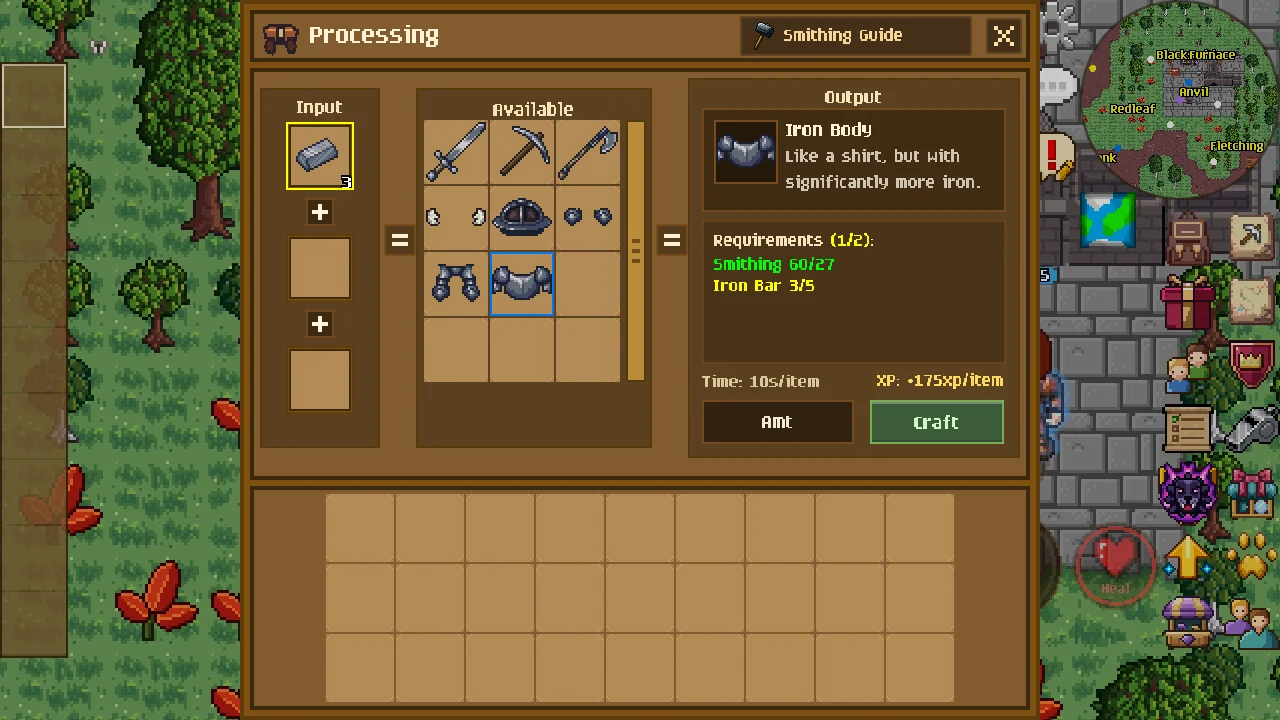
Furnaces, anvils, ranges and the other crafting stations now list everything you can make at your level the moment you open them, so no more guessing what to drag in first.
- Narrow it down. Put resources in the input slots and the list narrows to recipes that use all of them. It also shows what they make at higher levels, after what you can make now, so you can see what's coming.
- See what's missing. Pick a recipe before adding anything and its input slots show faded copies of what it needs. Each slot and requirement is green when you have enough, yellow when you have some and red when you have none. Tap a faded copy to see what it is, and if you have it, a hand shows you dragging it over from your inventory.
- What's next. A button at the top of the window opens that skill's guide, to see what you unlock next.
Stations where every recipe makes the same thing, like burning logs into coal, still wait for you to put something in.
Three new dragons
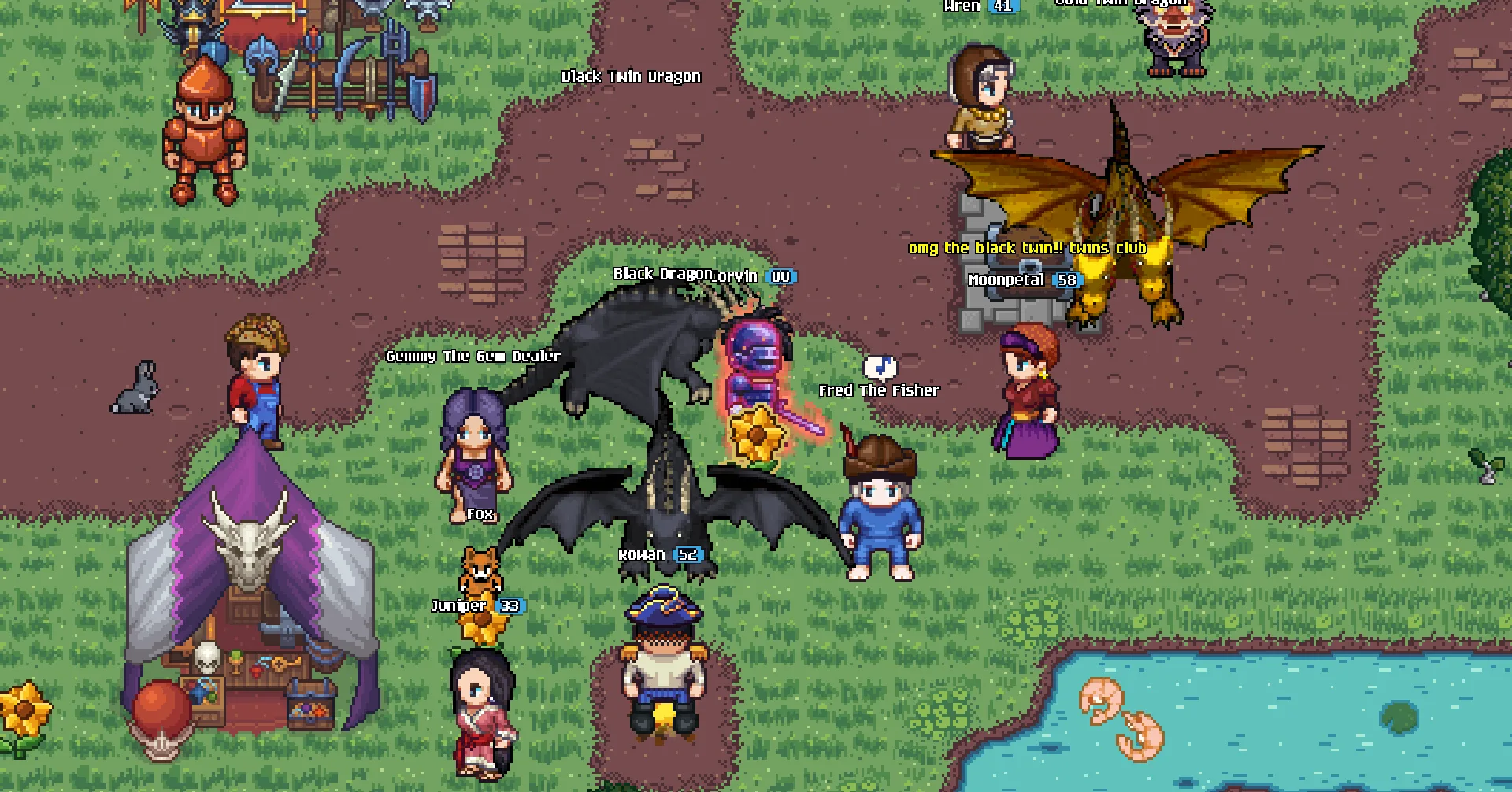
Three more dragons join the pet shop: the Gold Twin Dragon, a two-headed Gold Dragon, and the Black Dragon and Black Twin Dragon, coal-black with bone-pale horns. The Black Dragon costs 1,200 Taria Tokens or Gems, and both twins cost 1,500. They're here for good, not just for Veilfall.
Smoother on phones
A lot of this update went into making the game run better, mostly on phones.
- The Hollow King's arena no longer slows phones to a crawl. Its night is lit by dozens of jack-o'-lanterns, candles and lanterns, plus every player and spell in the fight, and the game used to work out every one of those lights for every pixel on your screen. It now works the darkness out once per pixel of the game's own pixel art, and only from the lights that actually reach each spot, so the arena looks the same and runs as smoothly as the rest of the world. Nights everywhere else are lighter on your phone too.
- No hitch at the start of a fight. The game used to stutter the first time each spell or effect showed up. It now gets every effect ready while it loads, and your phone keeps them, so only the first load after an update takes a moment longer.
- Qualcomm phones, which is most Android phones, draw the game a good deal faster everywhere: about a fifth more frames in town and in the arena on a Pixel 2, and half again as many with a menu like Settings open.
- Phones that can't turn the picture themselves, like many Samsungs, no longer spend graphics power turning every frame sideways for landscape. The game now draws it already turned, as Google recommends, so these phones hold their frame rate in busy scenes more easily.
- No more graphics memory leak. Resizing the window on desktop, logging out and back in, and updating from the main menu each left behind graphics memory the game never gave back, so a long session could run a phone out of it and crash. It's now freed as soon as the game is done with it.
Also new
- Minimap button tips. The buttons beside the minimap now tell you what they do. Rest the mouse on one to see its name, its hotkey and a short description. On phones, hold a finger on a button, and slide it across the others to read each one (lifting it afterwards doesn't press anything).
- Readable connection errors. When the game can't connect from the main menu, it now tells you what happened in plain words instead of a wall of technical text: the server is offline or restarting (try again in a few minutes), or your device has no internet. Copy error details puts the technical bits on your clipboard, and if it keeps happening, paste them in our Discord (the Open Discord button is right there).
- Pick your graphics backend. Graphics in Settings marks the backend we recommend for your device, and you can now pick another one even on phones where the game normally chooses for you. It warns you first that it may crash or run badly, and if it does crash, the next start goes back to the recommended one. On Android, the Use Vulkan and Use Open GLES shortcuts on the app icon always take effect now, and on desktop a launch option such as
--renderer vulkan(for example in Steam's launch options) picks one for that run. - Music from other apps. On iPhone and iPad, music or podcasts you play from another app keep playing alongside the game instead of stopping when you open it (you can turn the game's own music down in Settings).
- Memory in the performance overlay. The performance overlay now also shows how much memory the game is using: VRAM for its graphics, Heap for the game's own data, and Memory for the whole app.
- Taria Tips only show in chat now, instead of also popping up over the screen when you have a window like the bank open.
- Chat text runs right up to the scrollbar before wrapping, so lines hold a little more, and the chat box is a little smaller, so it takes less room on screen.
Fixes
- Sound after a call. On iPhone and iPad, a phone call, Siri or an alarm no longer leaves the game silent until it crashes a while later, often in the middle of a long mining or woodcutting session. Sound now comes back a moment after the interruption ends, and sound effects are lighter on battery on every device.
- Android crashes. The game no longer crashes the first time you open it on some low-cost Android phones (several Itel, Honor, ZTE, TCL and Realme models). Those phones, and any other with the same PowerVR graphics on a driver version that crashes, now start on the older, steadier graphics mode. It also no longer crashes on some Android 14 phones as it opens or when you buy something in the store, or in its sound system when you switch away from it and back.
- Holding attack keeps attacking again. Hold it and you swing, then move on to the next monster in reach when one dies, without lifting your finger. The button also no longer goes dead while auto-attack waits for a target that walked out of range.
- Veilfall: a soul you're walking to the Veil Gate no longer stays behind when you log out. Logging out mid-walk left a ghost of them standing where you'd been, which is why extra Nana Brines kept piling up around town. The soul now leaves with you and is back at your side when you log in.